Billing and invoicing (for centers)
For center admins: everyday billing tasks in Bloomily — recording offline payments, sending receipts, creating invoices, voiding stale invoices, and issuing Stripe refunds.
Last updated About 2 hours ago
Start with the question you need to answer, then open the right billing screen or guide.
Screenshots show the Growing Minds demo center. Your center’s records and amounts will differ.
Where to start
Open billing reports
Select Money in the sidebar.
Select Setup & reports.
Choose Reports.
Select Reports & exports to choose a report and date range.
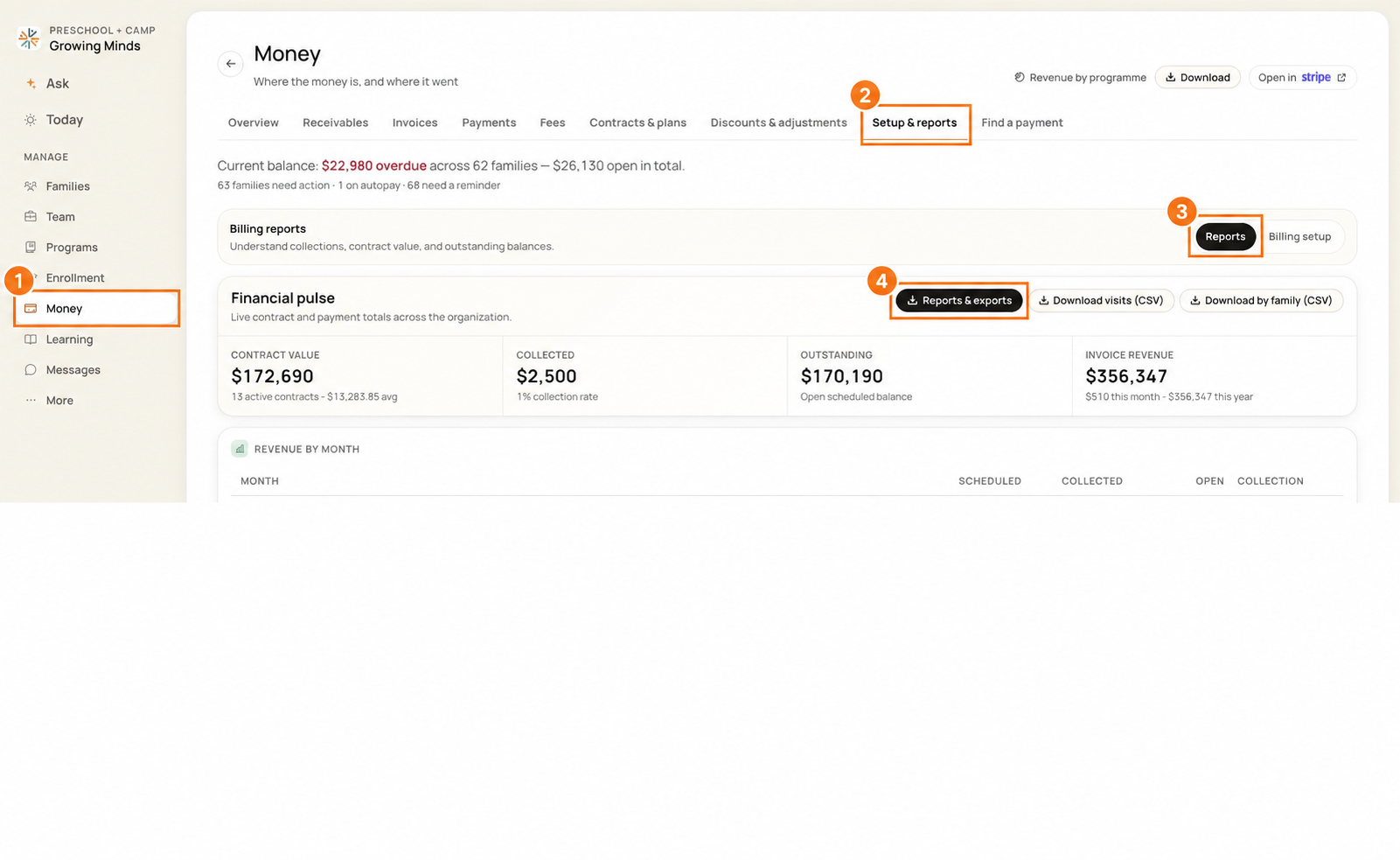
Open Money → Setup & reports → Reports → Reports & exports. Select the image to enlarge it.
Choose the right numbers
A bank deposit, payments received, invoice revenue, and contract value answer different questions. Their dates and totals can differ.
Bank deposit: use Reconciliation, the payout arrival date, and the payout’s net amount.
Payment status: look up the individual payment. A received payment may be paid out later.
Family balance: review invoices and receivables.
Program revenue: use the revenue report and its date controls; it is not a list of bank deposits.
For a deposit question, begin with Match a bank deposit to its payments, refunds, and fees.
Invoices and family balances
Payments, receipts, and Stripe
Tuition, contracts, packages, and discounts
Revenue reporting
Guides you can share with parents
Some linked guides include recorded walkthroughs. When a recording uses an older label, follow the written instructions and the labels in your current screen.
Credits
Bloomily does not hold a credit balance on a family's account. A credit is one of two things: a discount line on an open invoice (down to $0, not below), or a refund of a payment (Money → Payments, open the payment, Refund payment). When a family is owed money and has an open invoice, add the credit line there. When nothing is open, refund the payment. A paid invoice cannot be voided.
Was this helpful?