Conference bookings: follow up, book for a family, move and cancel
For center admins: read the Bookings tab, follow up with families who haven't booked, and book, move or cancel a conference time.
Last updated About 2 hours ago
The Bookings tab on a conference shows every time families have booked, and which children still need one. You can also book, move and cancel times for families there. For the whole setup, see Parent-teacher conferences: set up, publish and manage bookings.
Nothing on this tab emails or texts anyone. Booking, moving and cancelling are all silent, so tell the family yourself.
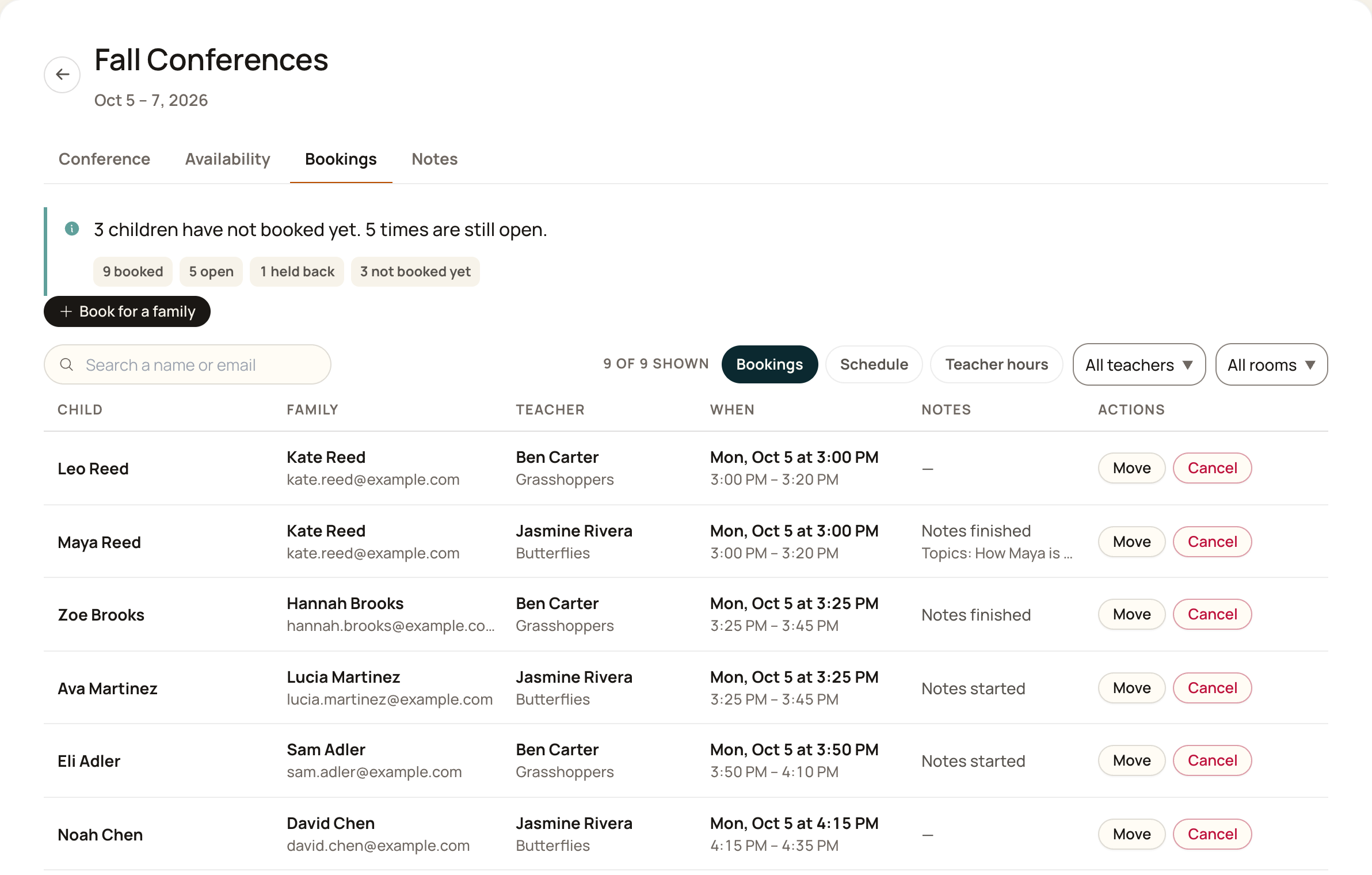
Read the numbers at the top
Booked: times families hold.
Open: times a family can still take.
Held back: times a teacher kept, so no family can book them.
Not booked yet: children in this conference's rooms with no time at all. Only enrolled children are counted.
Follow up with families who haven't booked
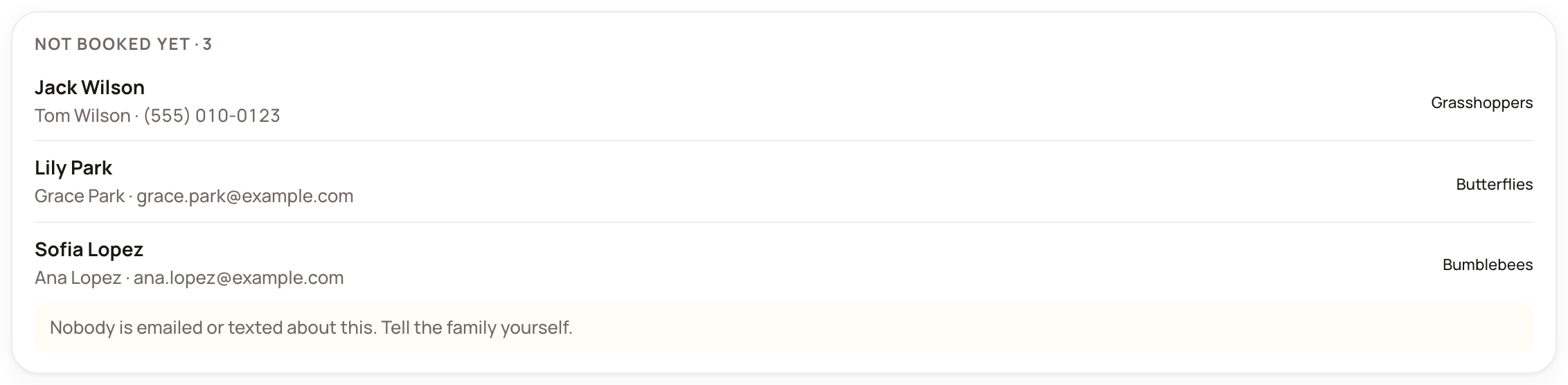
On the Bookings view, Not booked yet lists each child with no time, with a parent's email or phone. Use it to remind those families yourself.
Find a booking
Bookings lists every time a family holds, earliest first, with the child, the family and their email, the teacher and any topics the family added.
Schedule lays out one day at a time, with a column for each teacher.
Teacher hours shows how full each teacher's hours are.
Use the search box to find a child, a family or a teacher.
Use the teacher and room menus to narrow the list. Choosing a room shows only booked times, since an open time has no child yet.
Book a time for a family
Use this for a family who hasn't booked, for example a parent who never opens the app.
Press Book for a family.
Pick the Family: the parent this time is booked under.
Pick the Child. Only children in a room this conference covers are offered.
Pick the Time.
Add Topics for the meeting (optional). Your team and the teacher see this. The family doesn't.
Press Book the time.
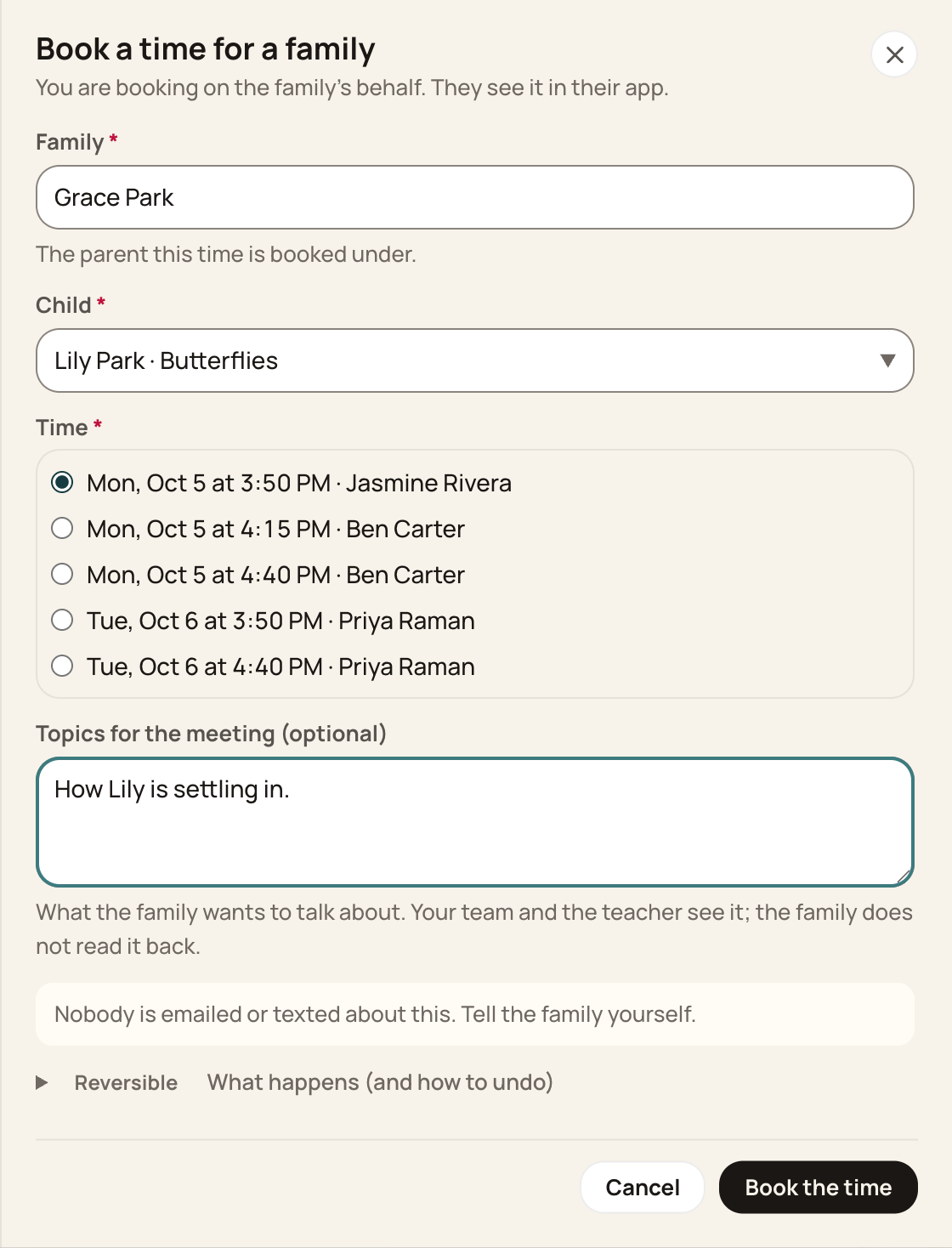
Check the teacher before you book. Book for a family doesn't check which room a teacher's hours are for.
A time you book for a family gets no day-before notice. Only a parent who books their own time does.
Move a booking
On the booking, press Move.
Under Move it to, pick the new time. The list shows every open time, from every teacher, so pick one with the child's own teacher.
Press Move the booking.
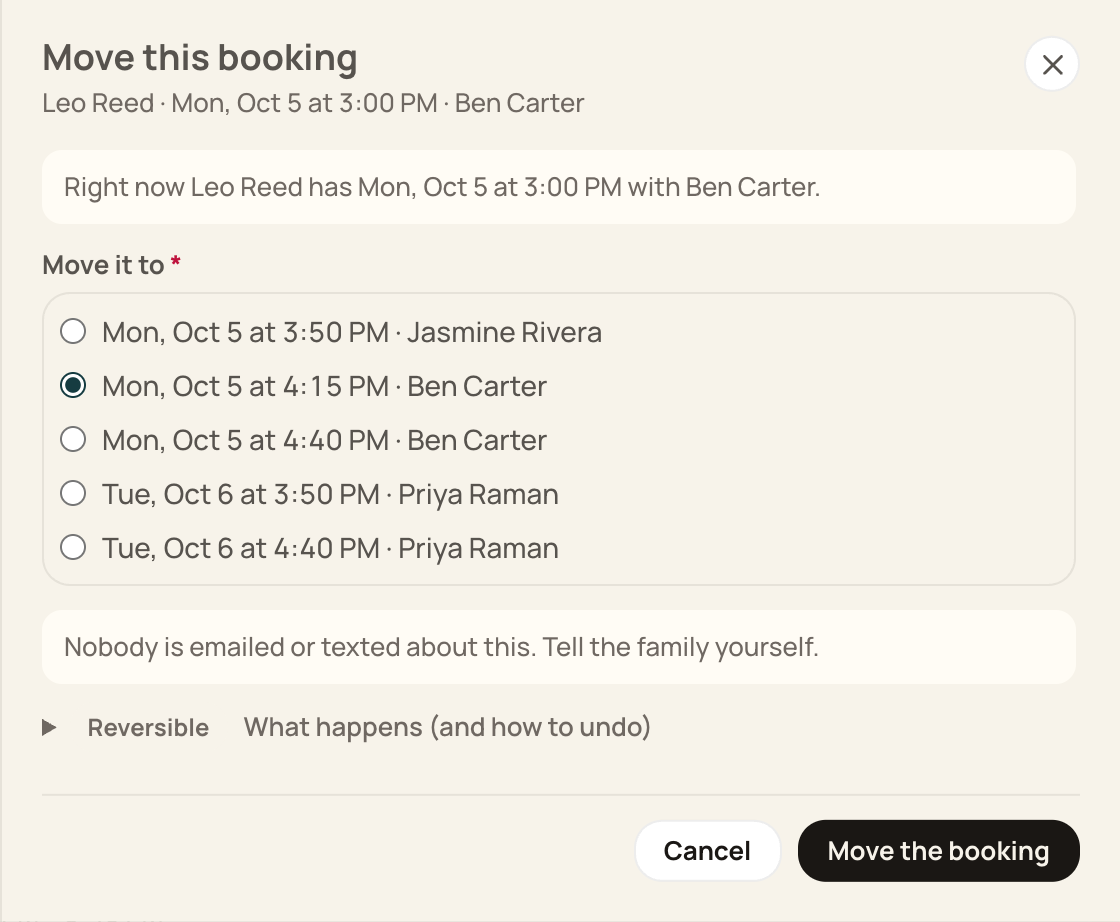
The family keeps their child and topics. The old time opens up for other families.
Cancel a booking
On the booking, press Cancel.
Add Why are you cancelling? (optional). Only your team sees this.
Press Cancel the time.
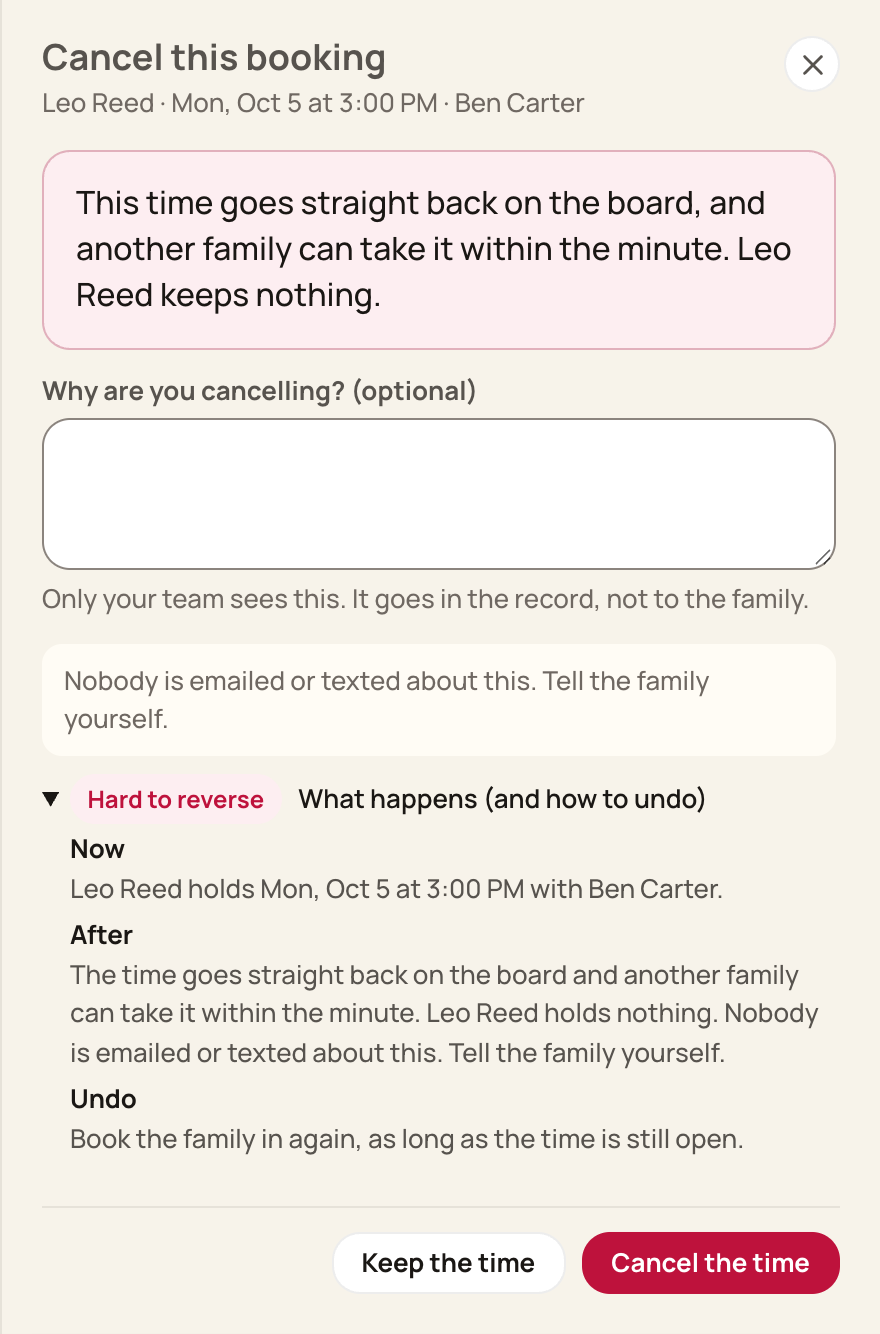
The time goes straight back on the board as open, and any family can take it.
Good to know
Moving and cancelling take effect right away. Neither waits on the family.
After Booking closes, families can't book, move or cancel. You still can.
A child who has left still shows their time here. You can cancel it, but you can't move it.
Your office roles and teachers set up for all rooms can open Bookings. A teacher limited to their own rooms can't.
Still need help?
In Bloomily: open More > Help & requests to send a request to Bloomily.
Email: support@bloomily.app
Was this helpful?