Conference notes: write and finish notes after each meeting
For center admins: who can write conference notes, how to save a draft and finish them, and what families see.
Last updated About 3 hours ago
After a conference meeting, write up what you talked about on the conference's Notes tab in Admin OS. For the whole setup, see Parent-teacher conferences: set up, publish and manage bookings.
Who can write notes
Your office roles and teachers set up for all rooms can open Notes.
A teacher who holds times on this conference sees only their own meetings' notes.
A director or office role with no times of their own sees every teacher's notes.
A teacher limited to their own rooms can’t open Conferences. At schools where teachers see their conference times in Staff OS, under My Schedule, they write notes for their own meetings there: press Write notes on a booked time, then Save draft, then Mark complete. The office sees the same notes on the Notes tab. At other schools, a teacher can send their notes to the office, for example in Team chat if your school uses it, and someone in the office writes them up.
Find the meetings that need notes
Open the conference and choose Notes. The list starts on Needs a note, so it shows only meetings with no notes yet or with notes still in draft. Choose Every time to see every meeting, finished ones included.
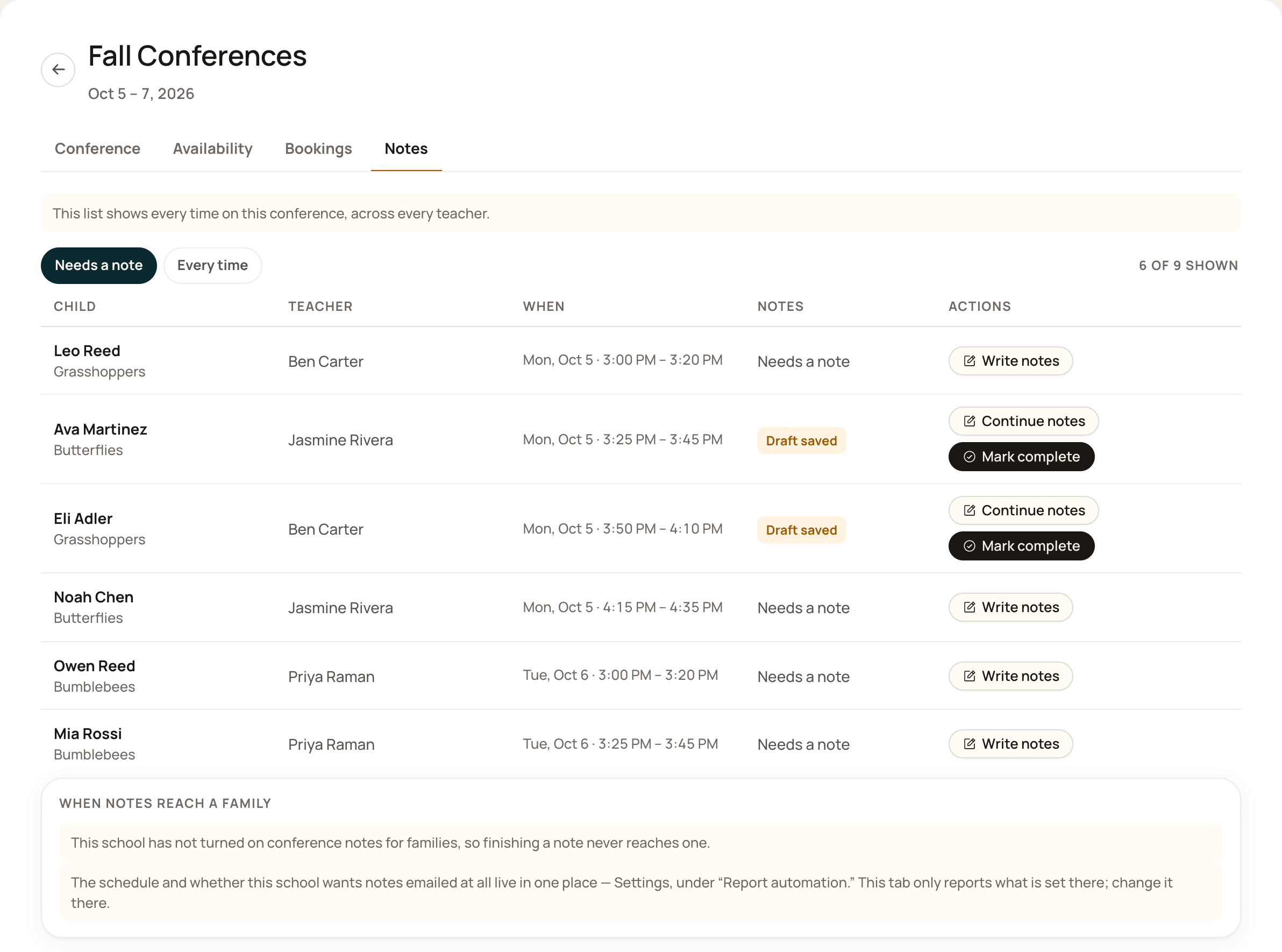
Write notes
On a meeting, press Write notes, or Continue notes if you started a draft.
Fill in the parts you need:
Summary: what you talked about
Strengths
Areas for Growth
Action Items
Parent Questions
Additional Notes
Press Save draft. You can come back and change a draft as often as you like.
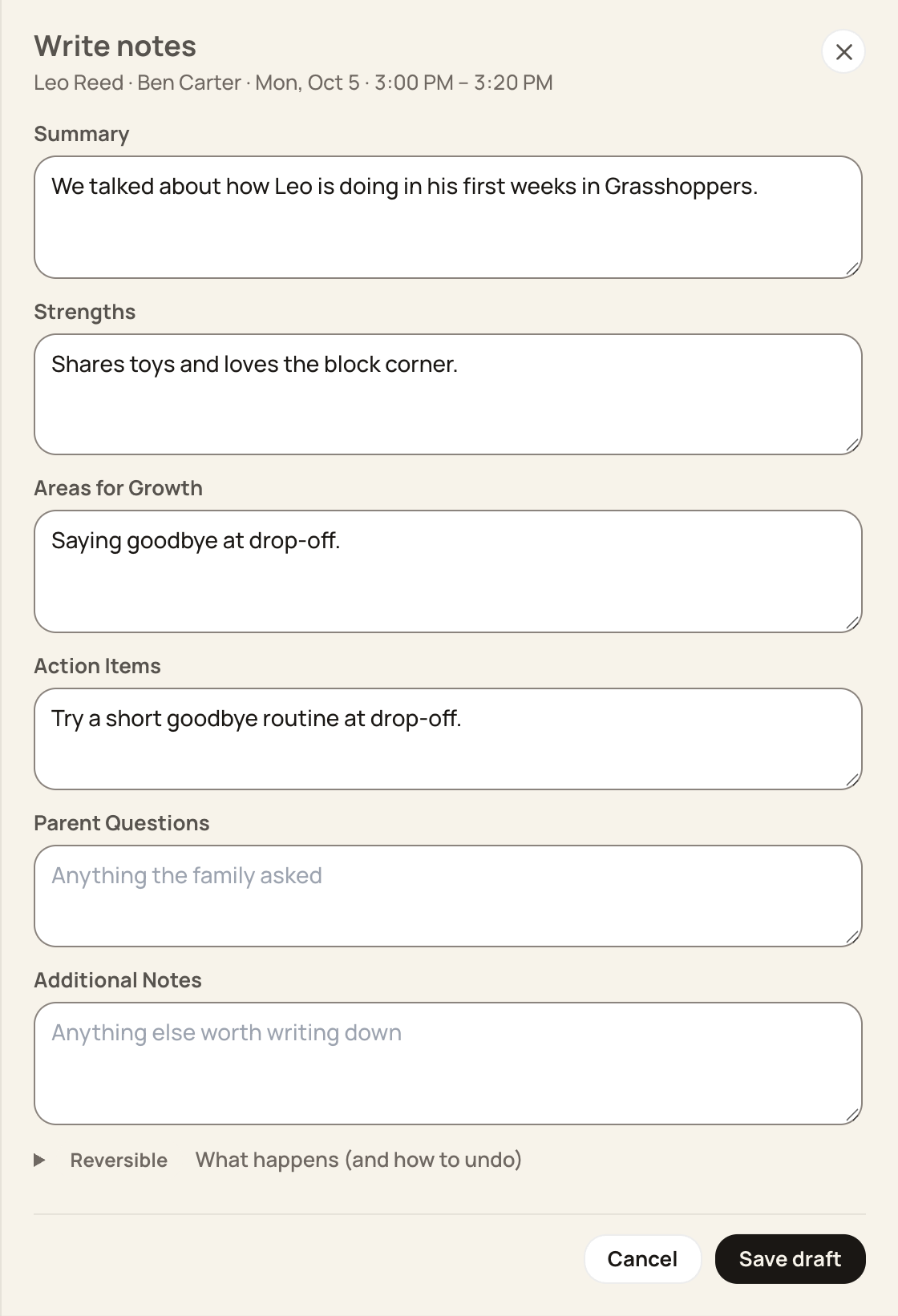
Finish the notes
When the notes are done, press Mark complete.
Read the confirmation, then press Mark complete again.
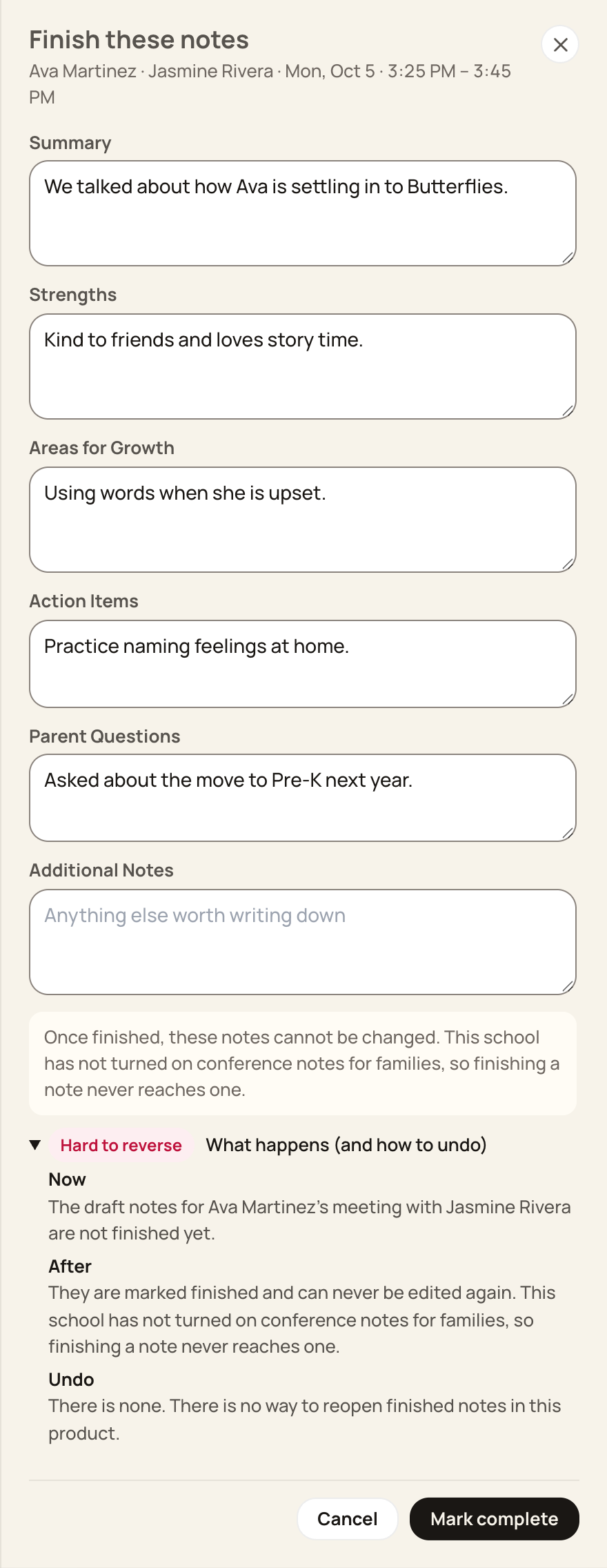
Finished notes are locked. They can never be edited again, so check them before you finish.
Finished notes show with View notes.
What families see
Families don't see conference notes in the Bloomily app.
Right now, Bloomily doesn't email conference notes to families either. That's true even if Conference notes is turned on in Settings, under Notifications, then Report automation. To check for your school, open a conference's Notes tab and read When notes reach a family.
If you want a family to have the notes, share them yourself.
Still need help?
In Bloomily: open More > Help & requests to send a request to Bloomily.
Email: support@bloomily.app
Was this helpful?