Timesheets Overview
Review and approve staff hours, then download them for your payroll provider. Bloomily does not process payroll or pay staff through this workflow.
Last updated About 2 hours ago
Review and approve staff hours, then download them for your payroll provider. Bloomily does not process payroll or pay staff through this workflow.
Workflow: Choose period → Gather hours → Review & correct → Approve → Export → Process externally
1. Open Timesheets
Open More → Timesheets in Admin OS. Read the selected pay period before making changes.
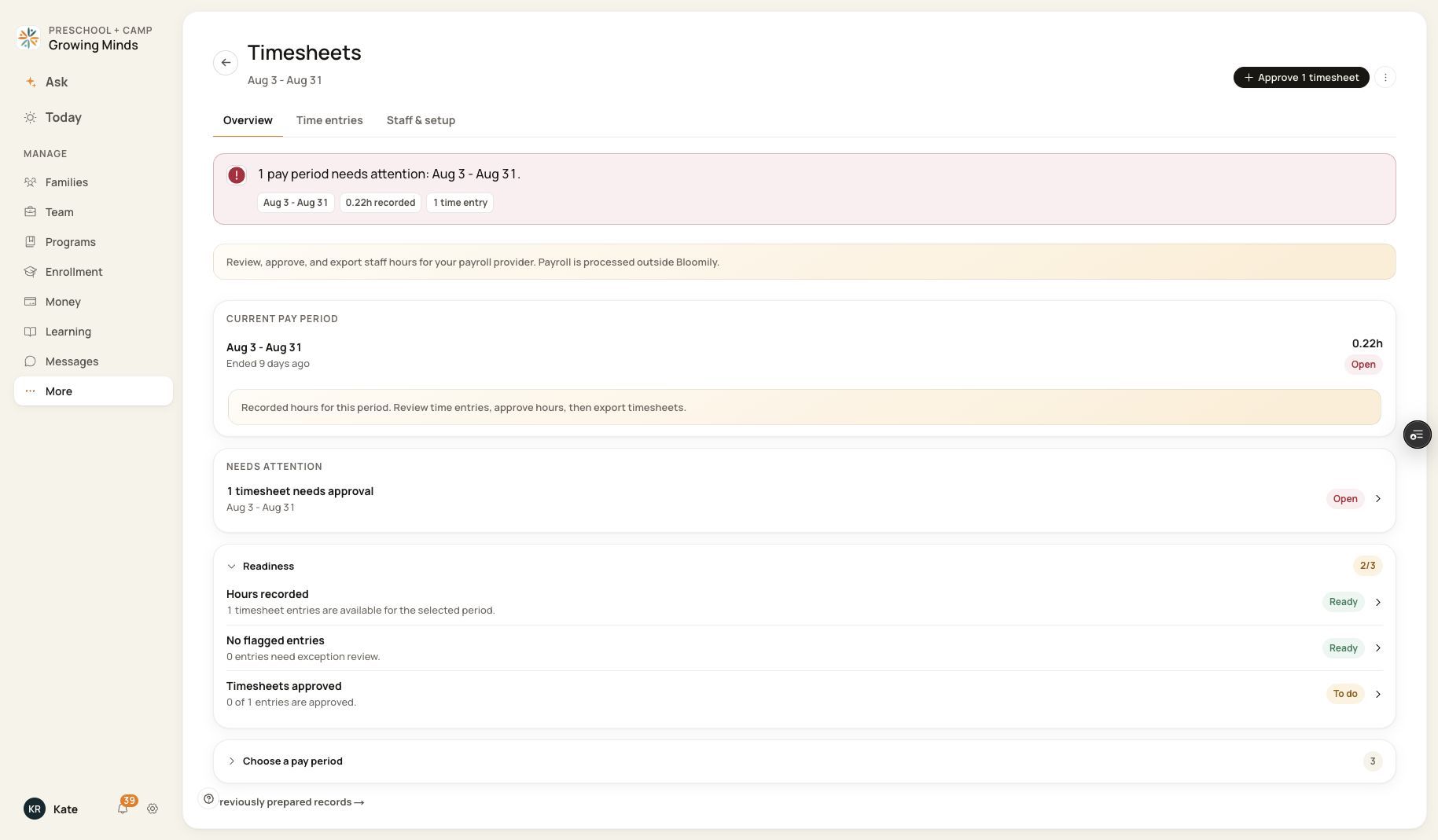
Overview shows the selected period, recorded hours and readiness checks.
2. Choose the workspace
Use Overview for period selection and readiness, Time entries for importing, reviewing and exporting hours, and Staff & setup for pay rates and settings.
3. Prepare the hours
Import recorded attendance or fill missing days from the published schedule. Review missing punches, breaks, duplicate coverage and regular/overtime totals before approval.
4. Export the reviewed period
Choose Time entries → Export timesheets. Check staff scope and the downloaded file before your payroll provider processes it.
Before you finish
Exports include every approval status for the selected staff across the whole pay period. The Show filter does not limit the export.
A schedule, attendance record, timesheet approval and completed payroll payment are separate records.
All Timesheets guides
Getting Started
Understanding the Difference Between Schedules, Attendance, Timesheets, and Payroll
Understanding What Bloomily Does—and Does Not—Send to Payroll
Setting Up Timesheet Permissions for Administrators and Managers
Pay Periods
Creating Time Entries
Reviewing Time Entries
Correcting Time Entries
Approving Timesheets
Staff Payroll Setup
Exporting for Payroll
Screenshots show an example center. Pay periods, approval, rounding, breaks and overtime settings depend on your organization’s configuration.
Was this helpful?